


Lightroom Presets vs Photoshop Actions: Complete Comparison Guide
This complete guide covers everything you need to know about
lightroom presets vs photoshop actions — from speed and workflow
to skin retouching and batch editing for professional photographers.
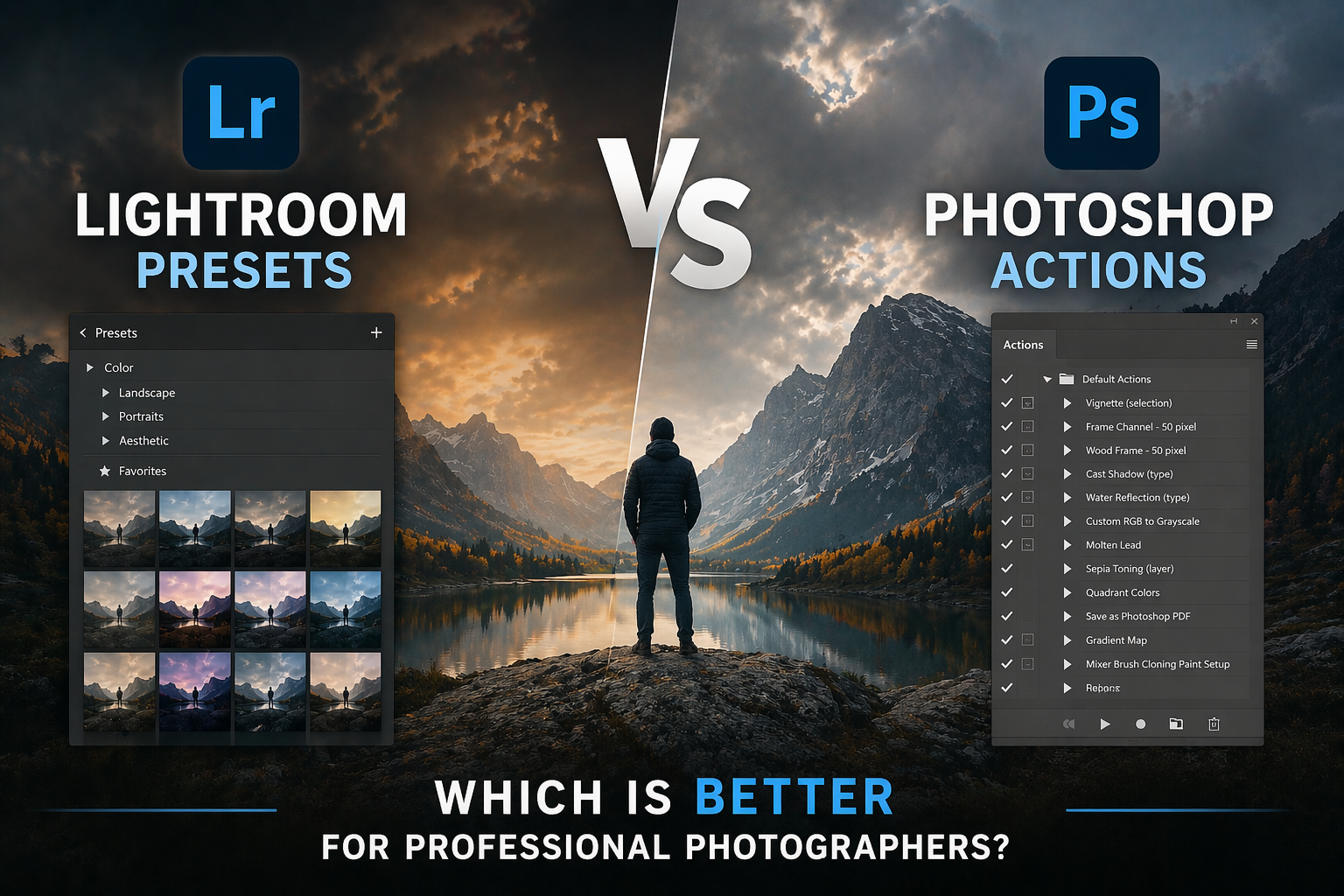
Lightroom Presets vs Photoshop Actions: Which Is Better for Professional Photographers?
The definitive comparison every photographer needs to read before investing in editing tools — with real workflow examples, a full feature breakdown, and a clear verdict.
Every photographer eventually faces this question: should I be using Lightroom presets, Photoshop actions, or both? It sounds like a simple technical choice, but the answer has a significant impact on your editing speed, your image quality, and ultimately your business as a photographer.
After years of shooting weddings, portraits, real estate, and events — and editing thousands of images through both workflows — the honest answer isn’t one or the other. But understanding when to use each tool is the difference between a slow, frustrating editing workflow and one that delivers professional results efficiently.
In this guide, we break down exactly what Lightroom presets and Photoshop actions are, what each does better, and how professional photographers use them together in a complete editing pipeline.
Lightroom presets are faster for color grading and batch editing large volumes of images. Photoshop actions are more powerful for complex skin retouching, compositing, and pixel-level adjustments. Most professional photographers use both — in sequence.
What Are Lightroom Presets?
A Lightroom preset is a saved collection of Lightroom develop settings — exposure, contrast, white balance, tone curves, HSL color adjustments, sharpening, noise reduction, and more — that can be applied to any image with a single click.
Think of a preset as a recipe. Once you’ve developed the perfect editing formula for a specific style — warm golden-hour portraits, moody dark landscapes, clean bright real estate images — you save it as a preset and apply it consistently across your entire shoot in seconds.
What Lightroom Presets Can Do
- Apply consistent color grading across hundreds of images instantly
- Set exposure, contrast, highlights, shadows, whites, and blacks simultaneously
- Adjust hue, saturation, and luminance for every color channel
- Apply lens corrections, vignettes, and grain effects
- Work non-destructively — the original RAW file is never changed
- Sync across all images in a shoot with one click using “Sync Settings”
- Work on mobile via Lightroom Mobile (presets import as DNG files)
Lightroom presets are unmatched for speed and consistency. A wedding photographer with 800 images can apply a consistent cinematic color grade to every single photo in under 60 seconds using a preset and the sync function.
What Are Photoshop Actions?
A Photoshop action is a recorded sequence of Photoshop steps that plays back automatically on any image. Unlike Lightroom presets which adjust global develop settings, Photoshop actions operate at the pixel level — they can create layers, apply filters, run selections, make targeted adjustments, and perform complex multi-step processes that would take an experienced retoucher many minutes to do manually.
Actions can do things that are simply impossible in Lightroom: frequency separation for skin retouching, dodge and burn layers, targeted eye sharpening, background replacement setups, and precise local adjustments on individual elements.
What Photoshop Actions Can Do
- Automate complex multi-step retouching workflows
- Create frequency separation layers for skin retouching
- Set up dodge and burn layers for sculpting light and shadow
- Apply targeted sharpening to specific areas like eyes and fine details
- Create professional hair masking setups
- Apply cinematic split-toning and color grading at the layer level
- Automate batch processes like watermarking, resizing, and exporting
- Run complex compositing preparations for product and commercial work
Photoshop actions are unmatched for precision and control. Complex skin retouching that would take 30 minutes manually can be set up in seconds with an action — leaving you in full creative control of the result.
Key Differences Explained
At their core, Lightroom presets and Photoshop actions solve completely different problems. Here’s a side-by-side look at exactly what separates them:
- Works on the entire image at once
- Adjusts develop settings (non-destructive)
- Instant — applies in milliseconds
- Ideal for batch editing large shoots
- Very easy to learn for beginners
- Works directly on RAW files
- Limited to Lightroom’s develop module tools
- Cannot retouch skin or make pixel-level edits
- Works on individual layers and pixels
- Can be destructive or non-destructive
- Takes seconds to minutes depending on complexity
- Better suited for individual hero images
- Moderate learning curve required
- Requires TIFF or JPEG — not raw-only
- Access to every Photoshop tool and filter
- Can retouch, composite, and create complex effects
When to Use Each Tool
The right tool depends on your photography type, your output requirements, and how much time you have per image. Here’s how professional photographers think about it:
You’re delivering 600–1,000 images. Speed is critical. Use a Lightroom preset to batch-process the entire gallery with a consistent color grade in minutes. Then export your 10–20 hero images to Photoshop and use actions for detailed skin retouching on the key portrait shots.
Use Both — Lightroom First, Photoshop for HeroesClean, bright, consistent images across a property shoot. A Lightroom preset calibrated for interiors — boosting clarity, correcting white balance, brightening shadows — applied to all shots in seconds. Photoshop actions may be used for sky replacement or window compositing on exterior hero shots.
Lightroom Presets — Primary ToolEach image needs individual attention — skin retouching, eye enhancement, background cleanup. Start with a Lightroom preset for color consistency across the session, then move every image to Photoshop and run frequency separation and retouching actions for professional skin work.
Use Both — Equal WeightPixel-perfect precision is required. Background removal, product compositing, skin retouching for beauty shots, color matching to brand standards — all of this requires Photoshop actions. Lightroom may be used for initial color grading but Photoshop does the heavy lifting.
Photoshop Actions — Primary ToolVolume and speed matter most. A consistent visual aesthetic across all posts is the goal. Lightroom presets applied via Lightroom Mobile give you a professional, consistent look on hundreds of images directly from your phone. Photoshop actions are generally not needed for social-first content.
Lightroom Presets — Clear WinnerMaximum creative control is required. Complex compositing, dramatic retouching, surreal color effects — this is where Photoshop actions shine. The ability to build up layers, blend multiple exposures, and apply precise local adjustments gives you capabilities that Lightroom simply cannot match.
Photoshop Actions — Clear WinnerFull Comparison Table
| Feature | Lightroom Presets | Photoshop Actions |
|---|---|---|
| Learning curve | Very easy — beginner friendly | Moderate — requires PS knowledge |
| Editing speed | Extremely fast — milliseconds per image | Slower — seconds to minutes per image |
| Batch editing | Excellent — sync to hundreds instantly | Limited — batch possible but slower |
| Skin retouching | Not possible | Professional-grade results |
| Color grading | Excellent — full HSL, curves, tone | Possible but more complex |
| Non-destructive | Always — RAW file never touched | Depends on action design |
| Works on RAW files | Yes — natively | Requires conversion first |
| Mobile compatibility | Yes — Lightroom Mobile | No — desktop only |
| Compositing | Not possible | Fully supported |
| Best for volume | 100+ images per session | Individual hero images |
| Layer control | Not available | Full layer stack control |
| Eye and teeth retouching | Basic only | Professional precision |
The Professional Workflow: Using Both Together
The most efficient professional photographers don’t choose between Lightroom presets and Photoshop actions — they use both in a deliberate, sequential workflow. Here’s how a typical professional shoot moves through both tools:
Import all images from the shoot into Lightroom. Flag or star your selects — the images that make the final delivery. Reject obvious failures. Most photographers cull to 20–30% of total shots taken.
Select one well-exposed representative image from the shoot. Apply your base Lightroom preset — your style foundation. Make minor adjustments needed for this specific image’s lighting conditions.
With your base-edited image selected, select all flagged images and click “Sync Settings.” Your entire gallery now has a consistent base grade applied in seconds.
Scroll through synced images and make individual exposure corrections where needed — particularly for images shot in dramatically different lighting. Typically 1–3 adjustments per image.
Identify your 10–30 hero images. Right-click → “Edit In → Adobe Photoshop” to open them as TIFF files while preserving your Lightroom color grade as a base.
In Photoshop, run your retouching action pipeline: frequency separation setup, dodge and burn layers, eye sharpening, skin smoothing. The actions handle the technical setup — you focus on the artistic result.
Save your Photoshop files — they automatically appear back in Lightroom as TIFF files. Export your full gallery from Lightroom and your hero images from Photoshop with your standard export settings.
A 600-image wedding gallery that would take 8–10 hours to edit manually can be processed in 2–3 hours using this combined workflow — Lightroom presets handle the 90% bulk editing, Photoshop actions handle the 10% detail work on hero images.
Choose your primary tool based on your main photography niche — but invest in both for a complete professional workflow.
- Wedding photography
- Event photography
- Real estate photography
- Travel and lifestyle photography
- Social media content creation
- Newborn and family photography
- Sports and action photography
- Street and documentary photography
- Commercial and advertising photography
- Beauty and fashion photography
- Fine art and editorial work
- Product photography
- Composite and concept photography
- High-end portrait retouching
- Architecture and real estate hero shots
- Print and publication work
Frequently Asked Questions
For most photography workflows involving color grading and batch editing, yes — Lightroom presets can handle the bulk of the work. However, they cannot perform pixel-level operations like skin retouching, background removal, or compositing. If your work requires any of these, Photoshop actions are essential and cannot be replaced by presets.
No. Lightroom presets work entirely within Adobe Lightroom Classic or Lightroom CC — no Photoshop subscription required. You can purchase, install, and use presets with a Lightroom-only Adobe subscription, which is significantly less expensive than the full Creative Cloud package.
Lightroom presets are significantly easier to learn and use for beginners. They work within Lightroom’s intuitive interface, apply with a single click, and are fully reversible with no risk of damaging your original files. Photoshop actions require familiarity with layers and blend modes before they can be used effectively. Start with presets and add actions once you’re comfortable with the basics of photo editing.
No, though they achieve similar results. Lightroom presets adjust settings within Lightroom’s develop module. LUTs (Look-Up Tables) are mathematical color transformations primarily used in video editing software like DaVinci Resolve and Premiere Pro. For video work, LUTs are the standard; for photo editing, presets are more flexible and precise.
Lightroom presets are dramatically faster for batch editing. Applying a preset to 500 images via sync takes under 10 seconds. Photoshop actions run one image at a time and can take anywhere from 5 seconds to several minutes per image depending on complexity. For high-volume shoots, Lightroom presets are the clear winner for speed.
You can run pre-made actions without deep Photoshop knowledge — just open an image, load the action, and press play. However, to fine-tune the results, adjust layer opacity, or troubleshoot issues, you need a basic understanding of Photoshop’s layer system. Most professional action sets include instructions and video tutorials specifically for photographers who aren’t Photoshop experts.
Get Both — Presets and Actions from Camegraphy
Browse our full collection of professional Lightroom presets, Photoshop actions, and LUTs — built for real photographers delivering real results.
Continue Reading
Learn more about how Lightroom presets work from Adobe’s official documentation.
This article is part of our complete guide →
Lightroom Presets: The Ultimate Guide for Photographers